
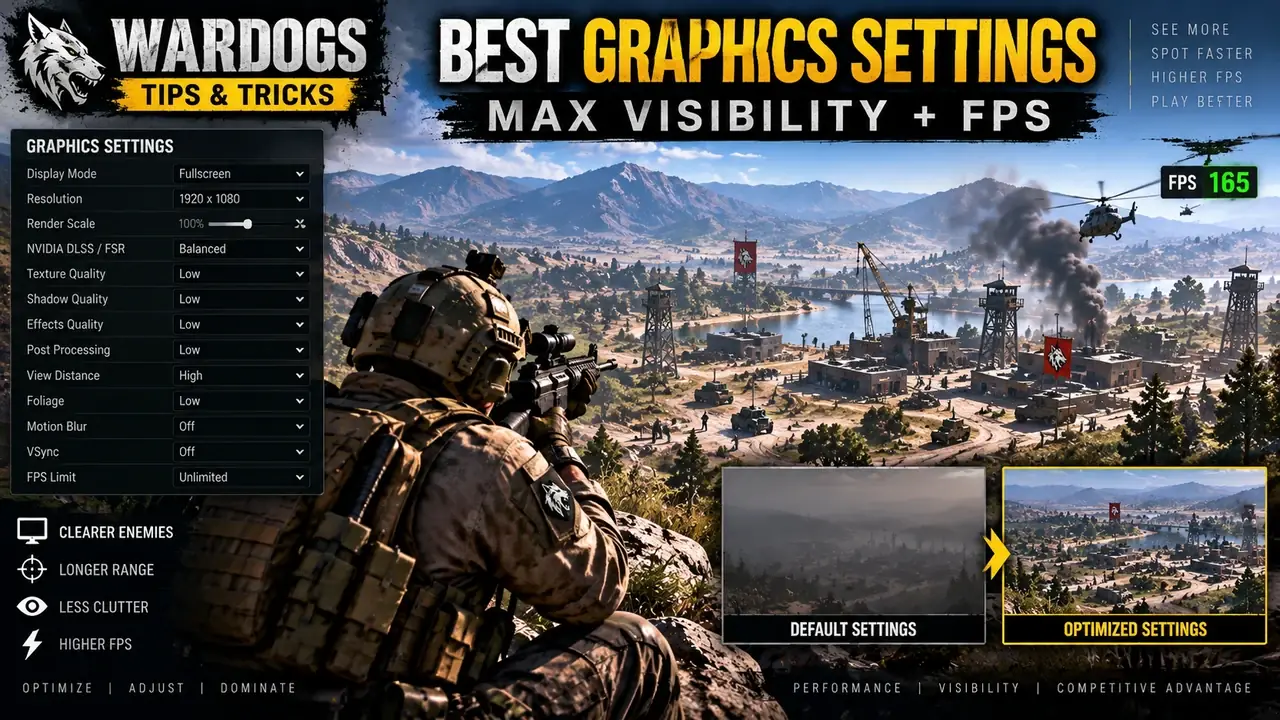
Goal: maximize battlefield clarity and stable FPS without turning useful long-range detail into a blurry mess. The best WARDOGS setup is usually a custom mix—not simply the lowest preset.
Best settings starting point
| Setting | Recommended starting point |
|---|---|
| Overall Quality | Custom |
| Resolution | Native |
| View Distance | High |
| Mesh Detail | Medium |
| Global Illumination | Off |
| Shadows | Low |
| Reflections | Low |
| Effects | Medium |
| Particles | Low |
| Post Processing | Low |
| Motion Blur | Off |
| Depth of Field | Off |
| Bloom | Off |
| Lens Flare | Off |
| Textures | High if VRAM allows |
| VSync | Off for a competitive setup |
| NVIDIA Reflex | On when supported |
Protect view distance first
WARDOGS has large maps with long vehicle and infantry sightlines. Lowering view distance too early can make distant targets harder to identify. Before sacrificing long-range visibility, lower expensive cosmetic effects such as shadows, global illumination, reflections, particles and post processing.
Turn off visual effects that hide movement
Motion blur, depth of field, bloom and lens flare can make the game look cinematic, but they can also reduce clarity while you are tracking movement. Turning these effects off makes the image easier to read during fast camera movement and bright outdoor fights.
Textures are different
If your graphics card has enough VRAM, higher texture quality may provide sharper surfaces with a smaller FPS penalty than heavy lighting or shadow settings. If you see hitching, texture pop-in or stutter, lower textures one step and retest.
Upscaling: use quality before performance
DLSS, FSR and similar upscalers can increase FPS, but aggressive performance modes may make distant players and fine geometry harder to read. At 1440p, start with a quality-oriented mode. At 4K, Quality or Balanced is a reasonable test point. At 1080p, native rendering may give you the cleanest image if your GPU can sustain the frame rate.
FOV: wider is not always better
A field of view around 95–105 is a useful starting range. A wider FOV shows more peripheral information, but it also makes distant targets appear smaller. If you spend most of your time in rifles, vehicles or long-range fights, try the lower end. Close-range players may prefer the upper end.
Test settings in a real battle
Do not benchmark while standing at headquarters. Test near busy objectives, explosions, mortars, helicopters and groups of players. Record your average FPS, worst drops, stutter and scoped performance. Change one or two settings at a time so you know which adjustment actually helped.
FAQ
What should I lower first?
Start with heavy lighting and shadow effects, then post processing, particles and reflections. Preserve resolution and view distance until you know you need to reduce them.
Should motion blur be on?
For maximum clarity, turn it off.
Should I use unlimited FPS?
A stable cap near the range your system can actually hold often feels better than large swings between very high and much lower frame rates.